Gemini Omni 1.1 Flash from a written idea
Start Gemini Omni 1.1 Flash with a subject, an action, and a setting. Describe the camera position and lighting, then compare the resulting clip with your original brief.
Create videos from text, reference images, or first and last frames. You can also edit a clip of up to 10 seconds. Choose landscape or portrait output from 360p to 4K.
Start Gemini Omni 1.1 Flash with a subject, an action, and a setting. Describe the camera position and lighting, then compare the resulting clip with your original brief.
Upload a starting image to Gemini Omni 1.1 Flash and describe what should move. Add an ending frame when you want to guide the final composition. Review details after generation.
Combine up to 7 reference images with Gemini Omni 1.1 Flash. Identify each image in your prompt so every reference has a clear role.
Select 4, 6, 8, or 10 seconds and 360p, 720p, 1080p, or 4K in Gemini Omni 1.1 Flash, in landscape or portrait. Inspect the displayed credits before starting a generation.
Upload one MP4 of up to 10 seconds, then describe how the scene should change. You can add up to five reference images alongside the clip.
Gemini Omni 1.1 Flash
on oomi.dev
Use the Gemini Omni 1.1 Flash workspace above to move from a first idea to a clip you can review. Start with a simple brief and refine one choice at a time.
Start CreatingGemini Omni 1.1 Flash gives creators a place to explore motion concepts before choosing a direction. Use your own assets and review the result against the intended purpose.
Start Creating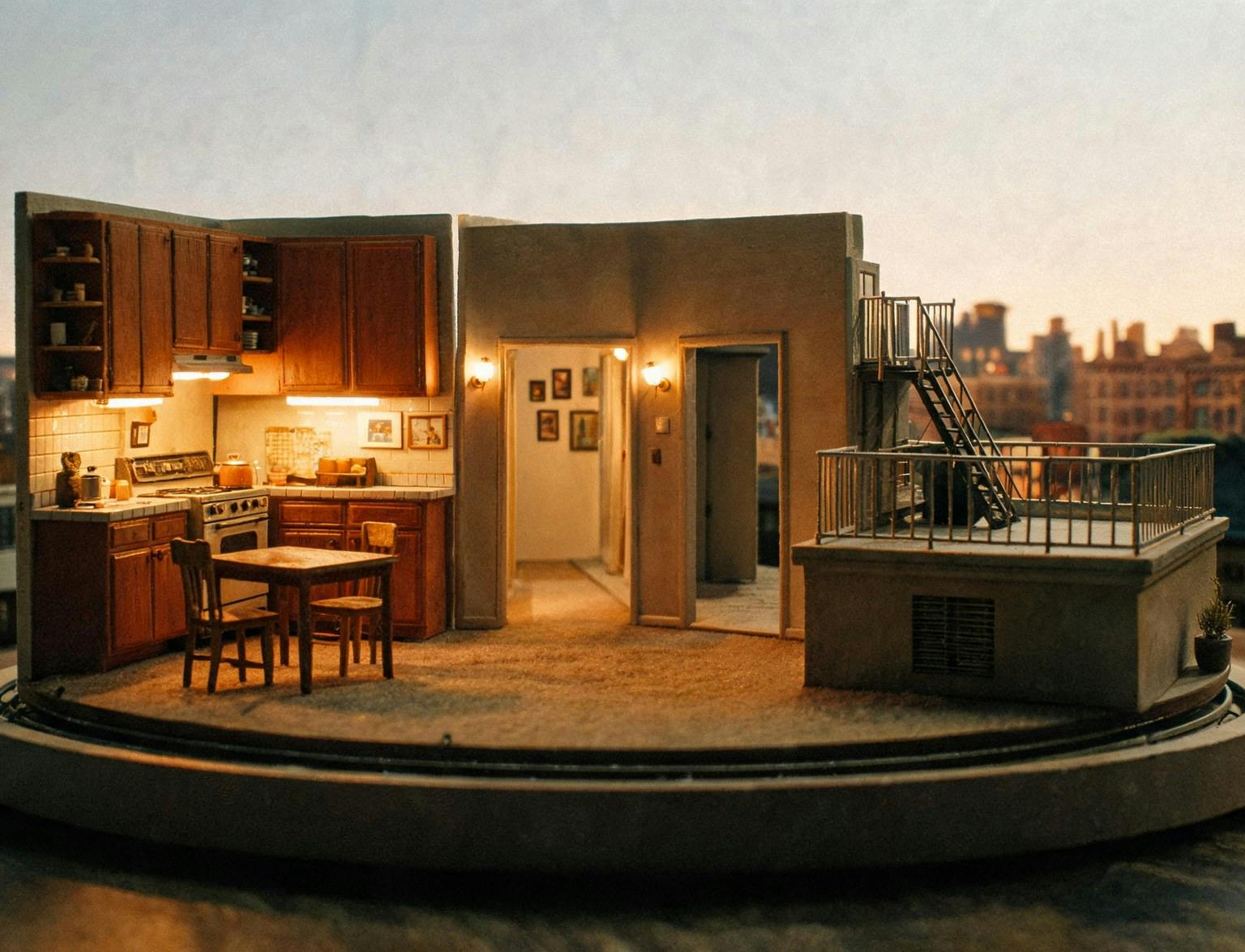
Try a product reveal with Gemini Omni 1.1 Flash. Start with a clear product image, describe the surroundings, and verify labels, proportions, and branding in the result.
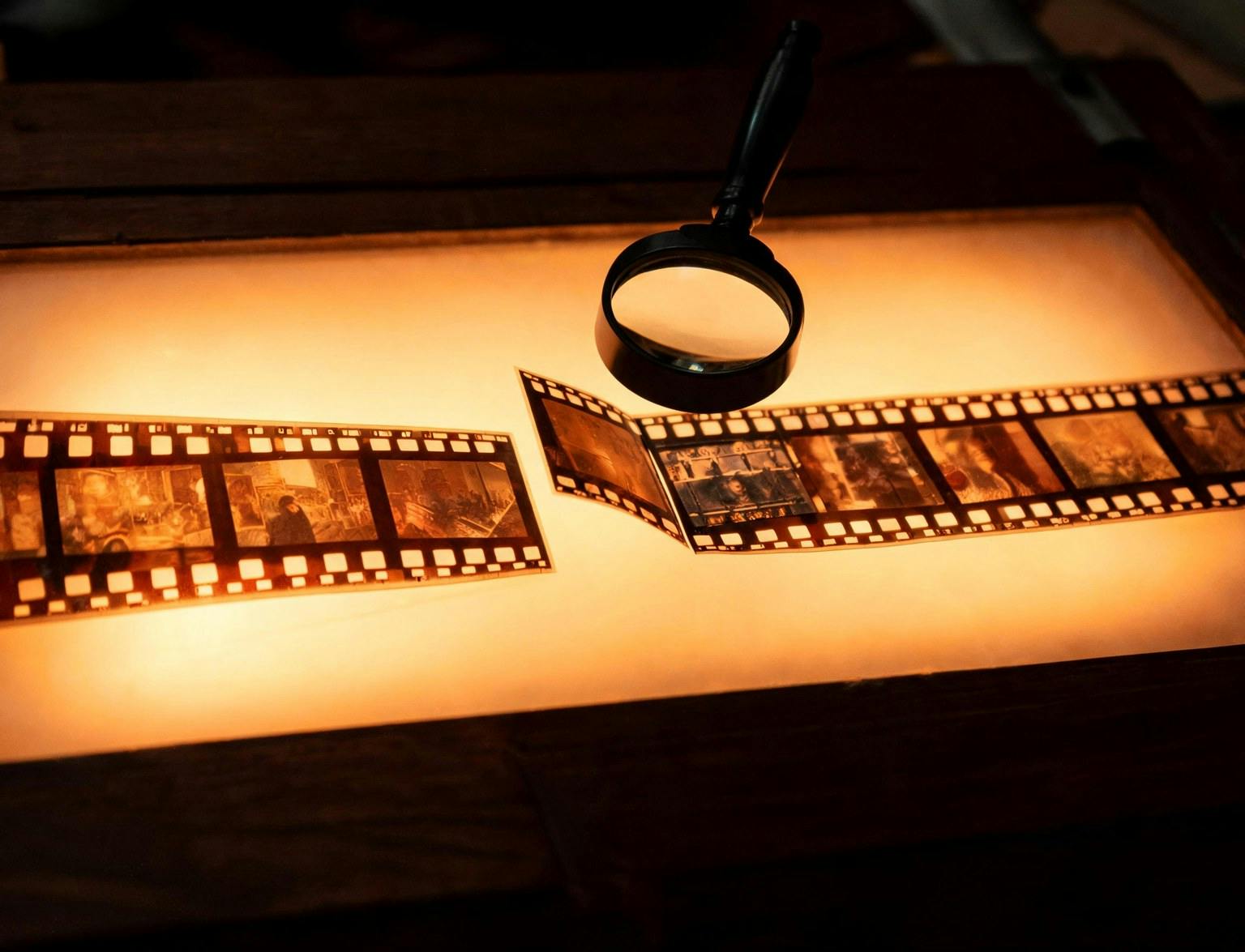
Explore a scene from your script with Gemini Omni 1.1 Flash. Compare framing and pacing before deciding which idea deserves more production time.
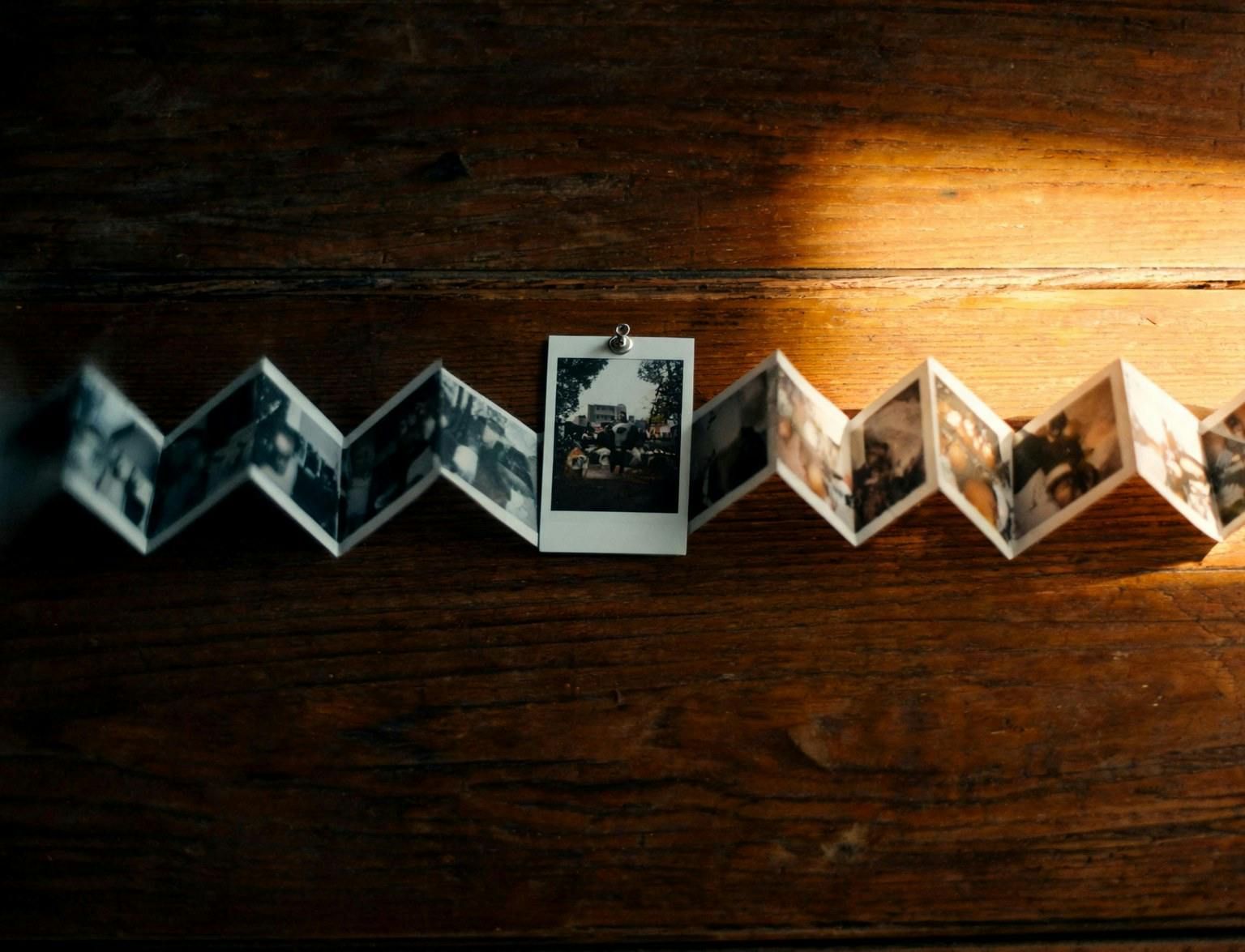
Develop an opening moment with Gemini Omni 1.1 Flash. Match the composition to your publishing format and keep the main action easy to follow on a small screen.
Bring a clear prompt and a deliberate visual direction to Gemini Omni 1.1 Flash. Preview each version and build on the details that work.
Start Creating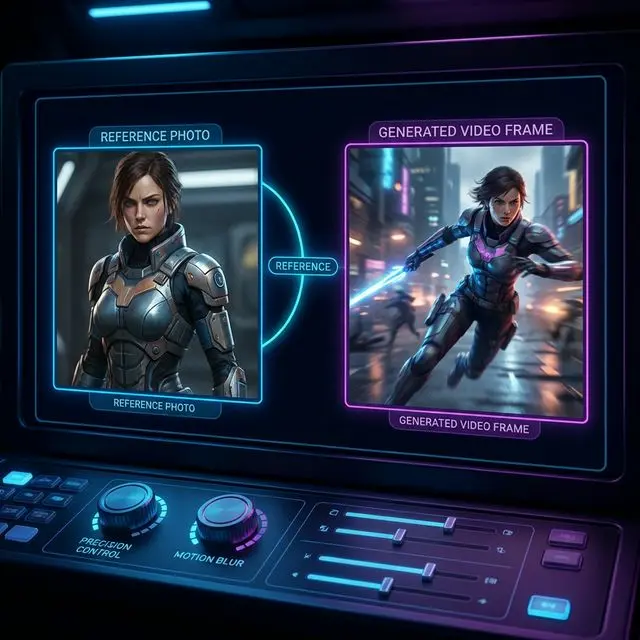
Keep your Gemini Omni 1.1 Flash settings visible while reviewing results. The same workspace lets you change models without relearning the basic layout.
Start CreatingCreate with Gemini Omni 1.1 Flash using text, first and last frames, or reference images. First/last-frame input cannot be combined with reference images.
Choose 4, 6, 8, or 10 seconds for a new clip. When editing a video, the model uses the input clip to determine the duration.
Choose 360p, 720p, 1080p, or 4K. A 4K render uses more credits than the other three resolutions.
Gemini Omni 1.1 Flash generates sound together with the picture, so there is no separate audio switch. Describe audible events alongside the action and review sound and picture together.
Preview Gemini Omni 1.1 Flash output in the result panel and revisit saved generations in My Creations. Download selected clips and keep useful prompt versions for later refinement.
Try Gemini Omni 1.1 Flash for a focused scene, an opening shot, or a visual concept. Choose the purpose before writing your prompt.
Introduce one product with a clear angle and a deliberate camera move.
Build a short visual hook around one readable action.
Explore light and composition before planning a complete sequence.
Compare visual directions while retaining your brief and reference assets.
Open Gemini Omni 1.1 Flash, describe the moment you have in mind, and turn your first idea into a video you can review.
Your Gemini Omni 1.1 Flash workspace